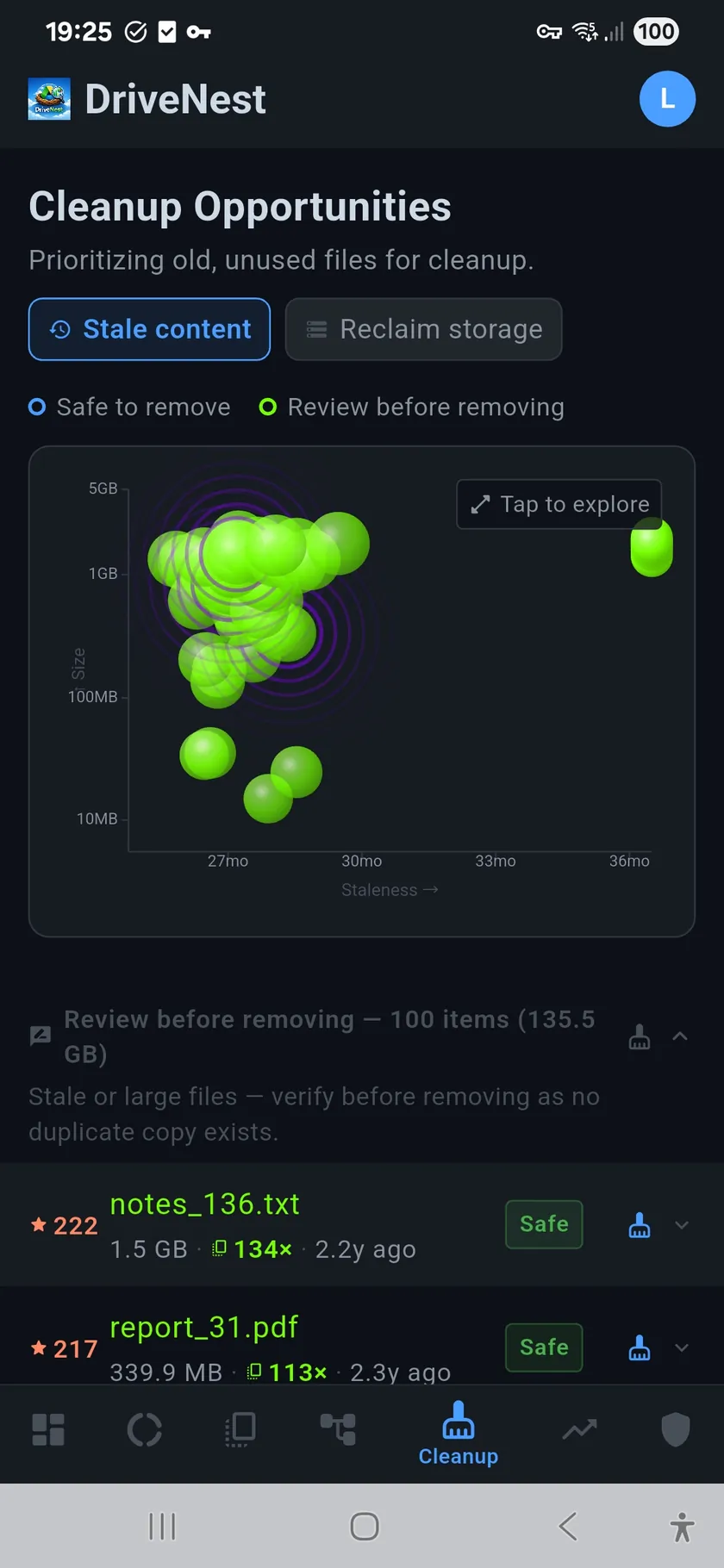
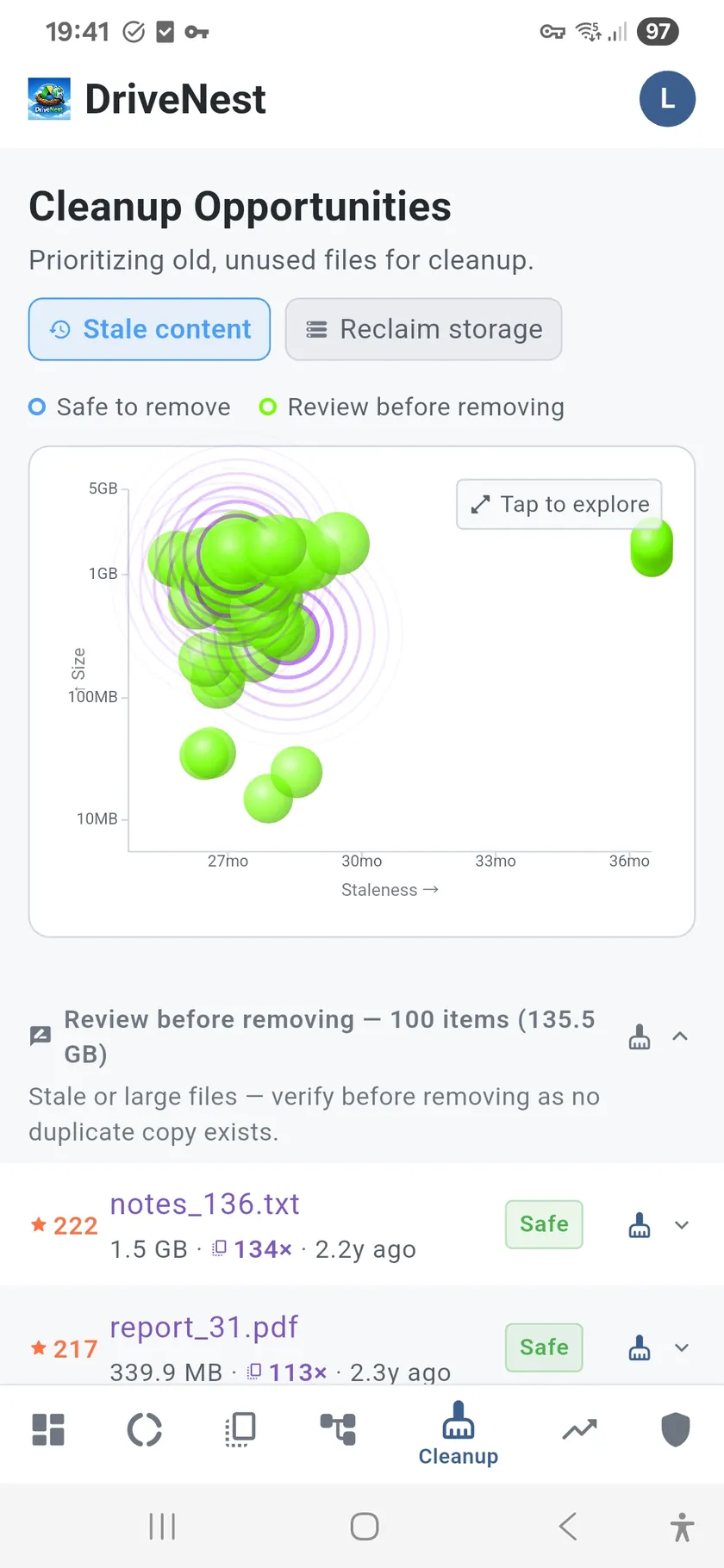
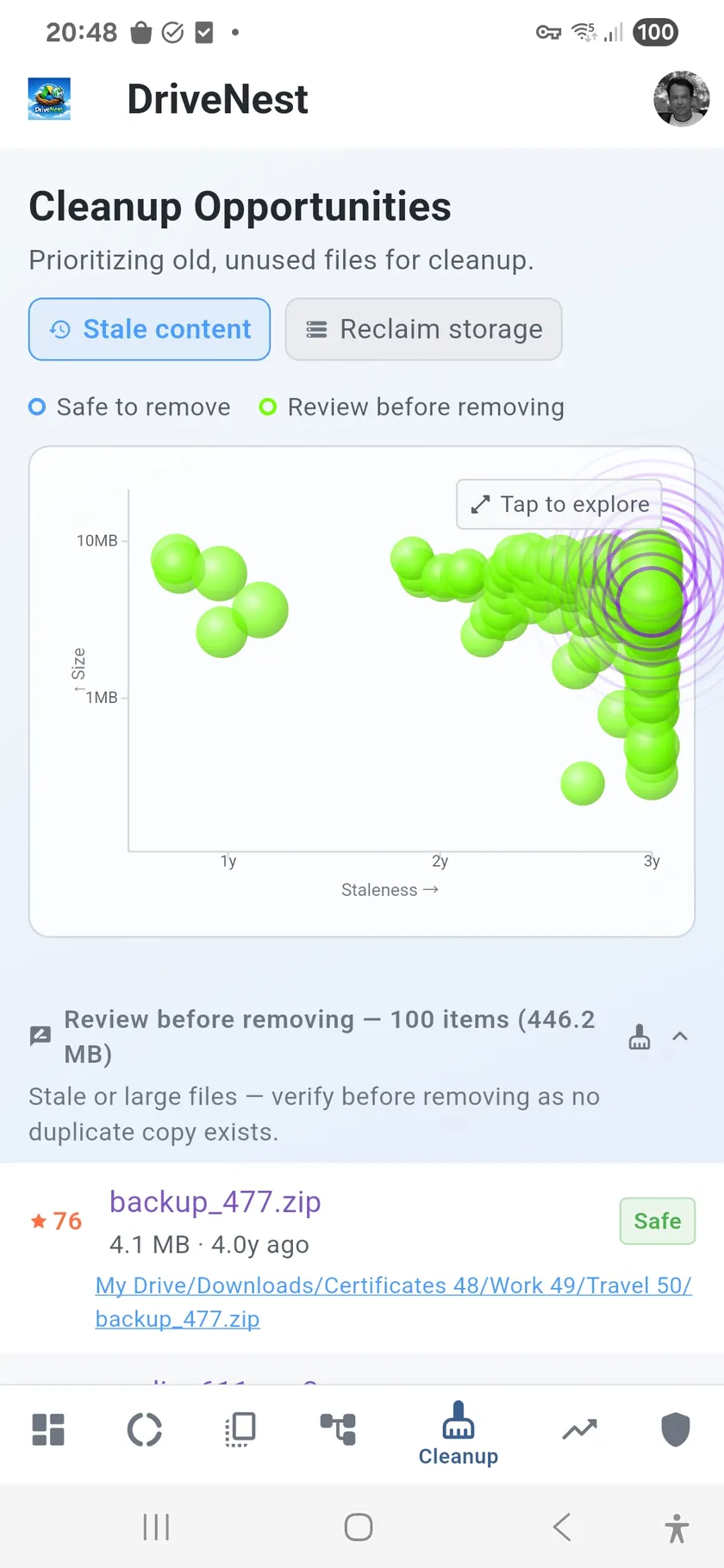
Two modes for two goals
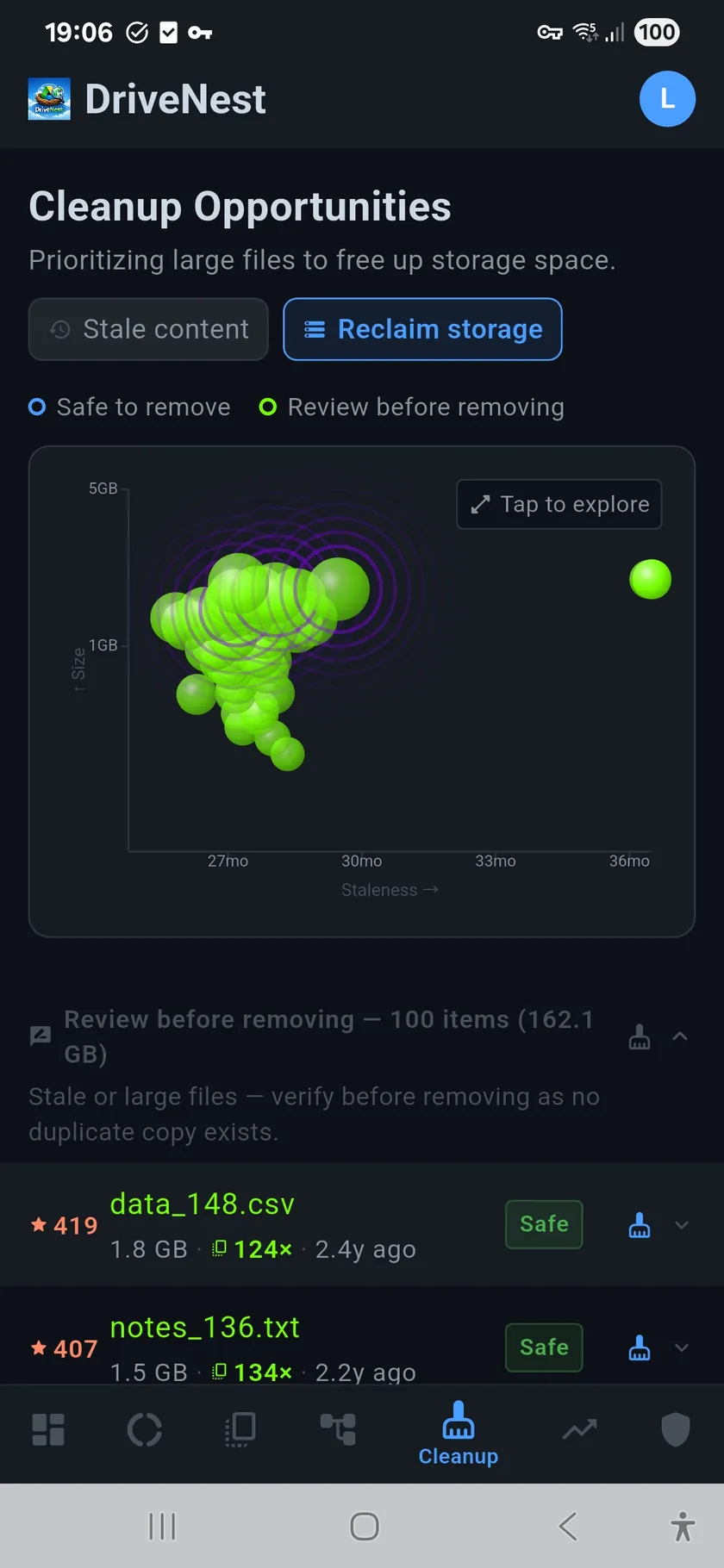
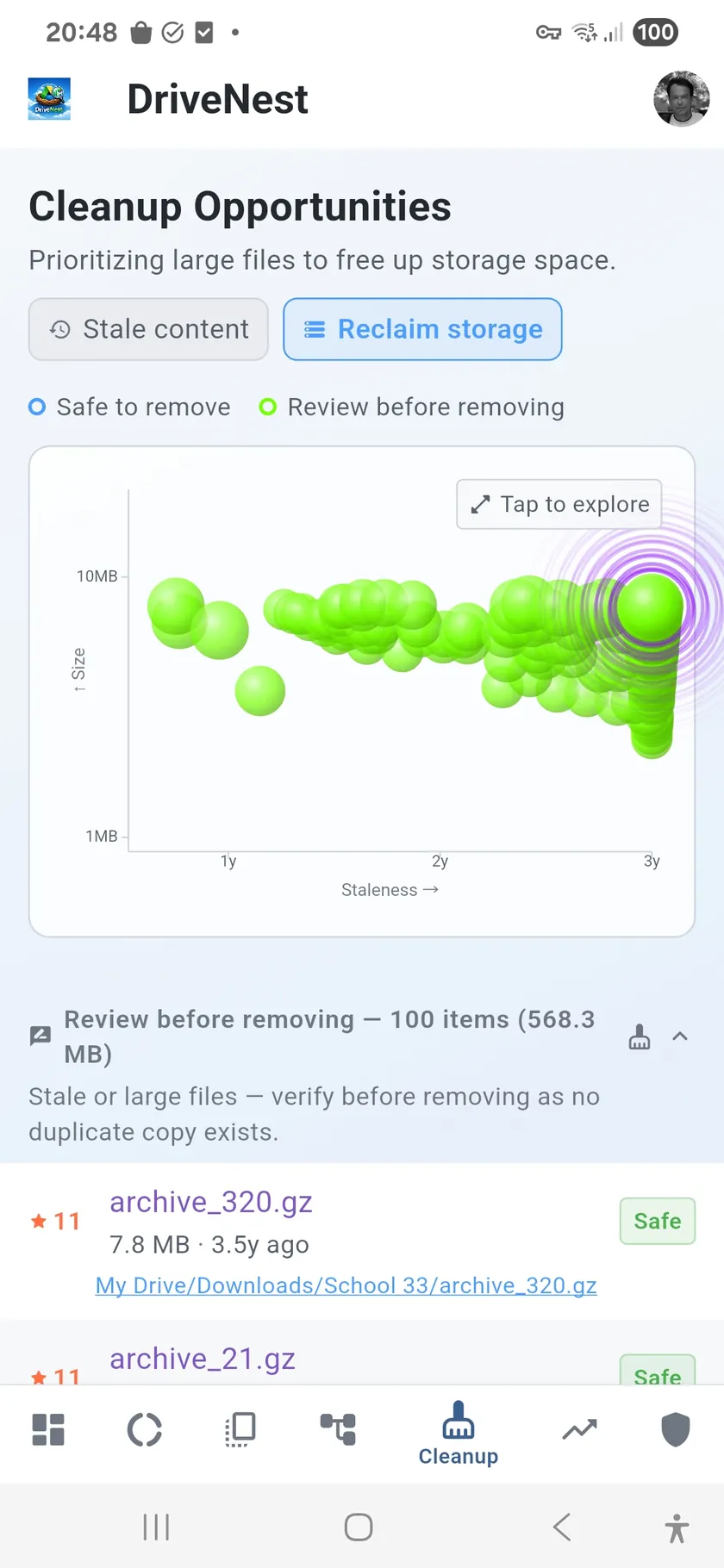
Stale Content surfaces files you have not touched in months — old downloads, forgotten attachments, abandoned project files. Reclaim Storage focuses purely on size, showing you the files that would free the most space if removed. Switch between them depending on whether you want to tidy up or free up gigabytes fast.
See the big picture with the bubble chart
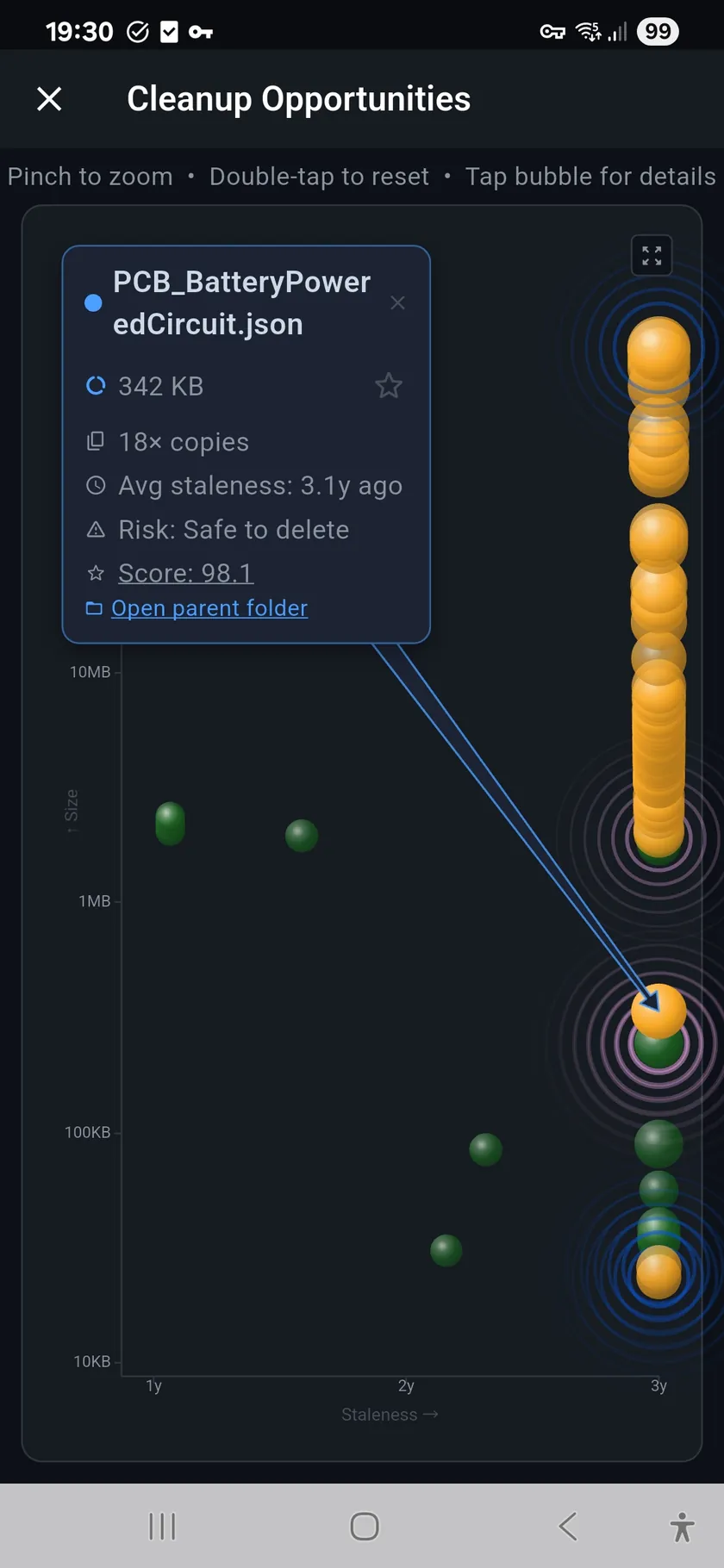
The bubble chart plots every cleanup candidate as a bubble. Bubble size represents file size, position maps to staleness and duplicate risk. Large bubbles in the upper-right corner are your best cleanup targets — big, old, and likely duplicated. Small bubbles in the lower-left are small, recent, and unique. The chart makes priorities obvious at a glance.
Safety built in
- Risk scoring — every file labeled Safe, Caution, or Risky
- Safe-to-remove classification — confirmed duplicates and stale files highlighted
- Never auto-deletes — DriveNest generates scripts, you decide what runs
- Trash, not delete — files go to Google Drive trash (30-day recovery) or the OneDrive recycle bin, never straight to permanent deletion
- Bubble chart visualization — size vs. staleness vs. duplicate risk in one view
- Two modes — stale content focus or maximum space reclaim
- Script generation — Apps Script, Bash, or PowerShell output
From analysis to action
Once you identify cleanup targets, generate a script to handle them. Choose Apps Script for one-tap deployment to your Google account, or Bash/PowerShell for local execution. Every script moves files to trash rather than permanently deleting them, giving you a 30-day safety net. See the Scripts page for full details on how scripts work.