Everything in one place
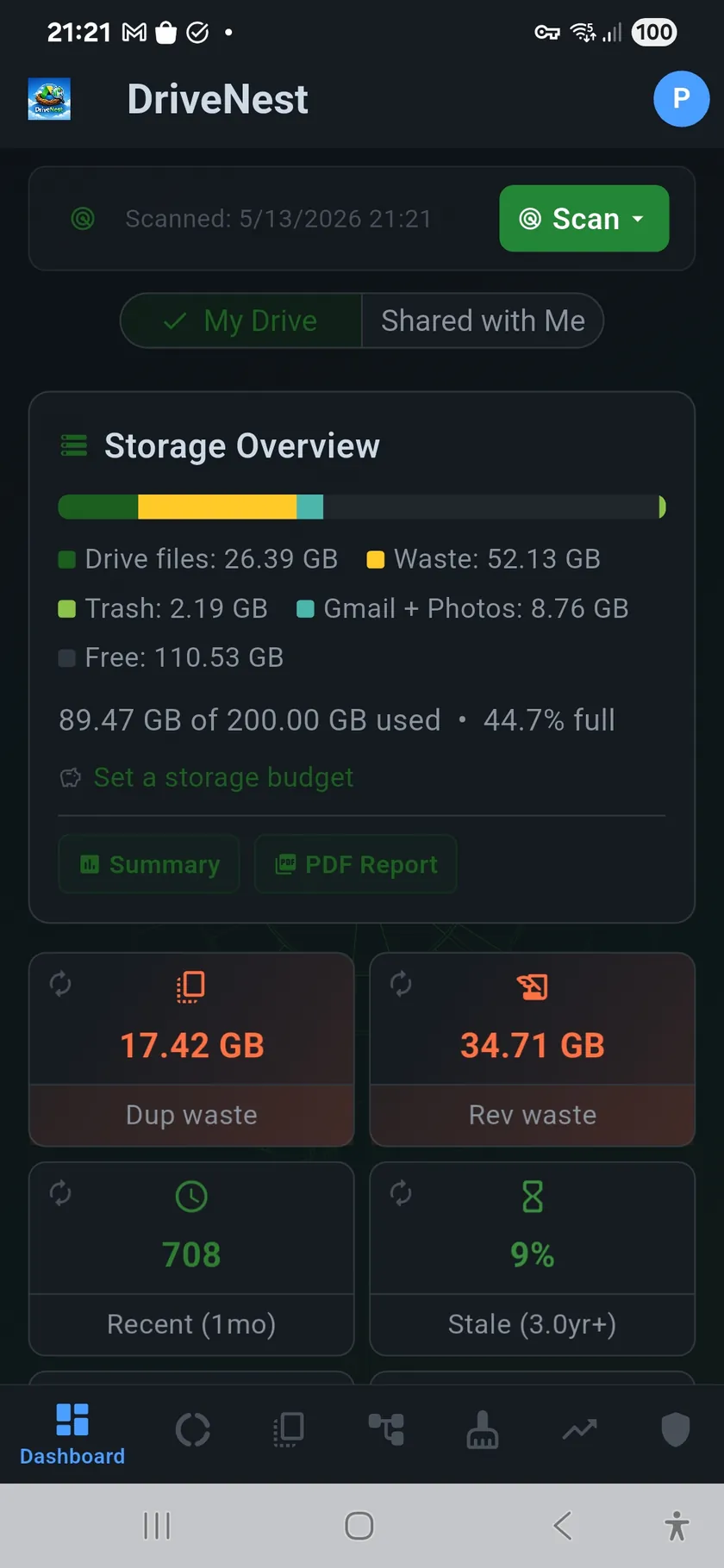
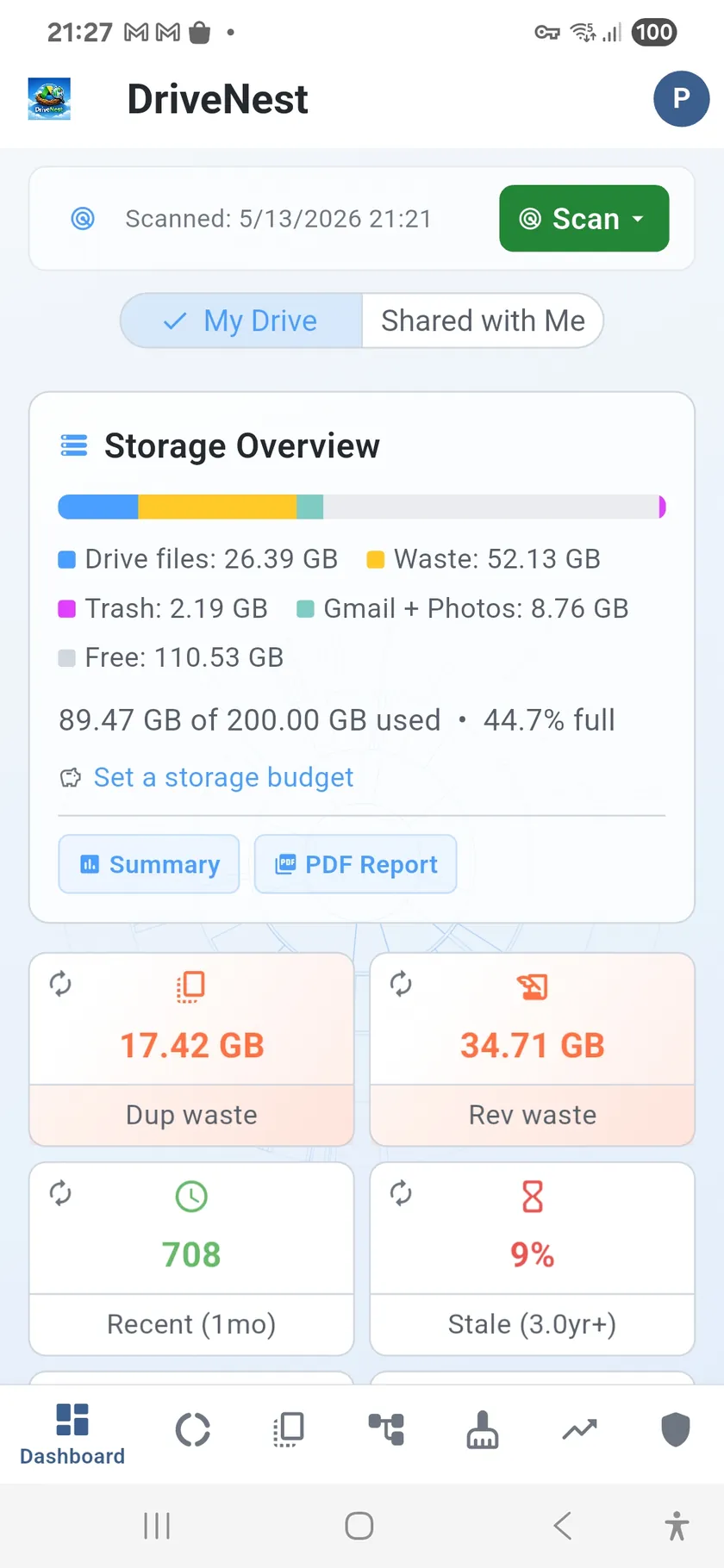
Your cloud tells you a single number: how much space you have used. That is not enough. The Dashboard breaks it down into a complete picture — quota usage (on Google, split across Drive, Gmail and Photos; on OneDrive, its own total), your largest folders and files, files you have not touched in months, and hidden space wasters you never knew existed. Each connected cloud gets its own dashboard, so Drive and OneDrive figures never blur together.
Spot problems before they cost you
Smart Insights automatically flag anomalies. A single folder taking 40% of your storage? A burst of new files last week? Hundreds of empty folders left behind by old projects? The Dashboard highlights these so you can take action before you hit your quota.
Dashboard Panels
- Storage Overview — total quota, with a Drive / Gmail / Photos breakdown on Google
- Quick Stats — file count, folder count, duplicate count, scan timestamp
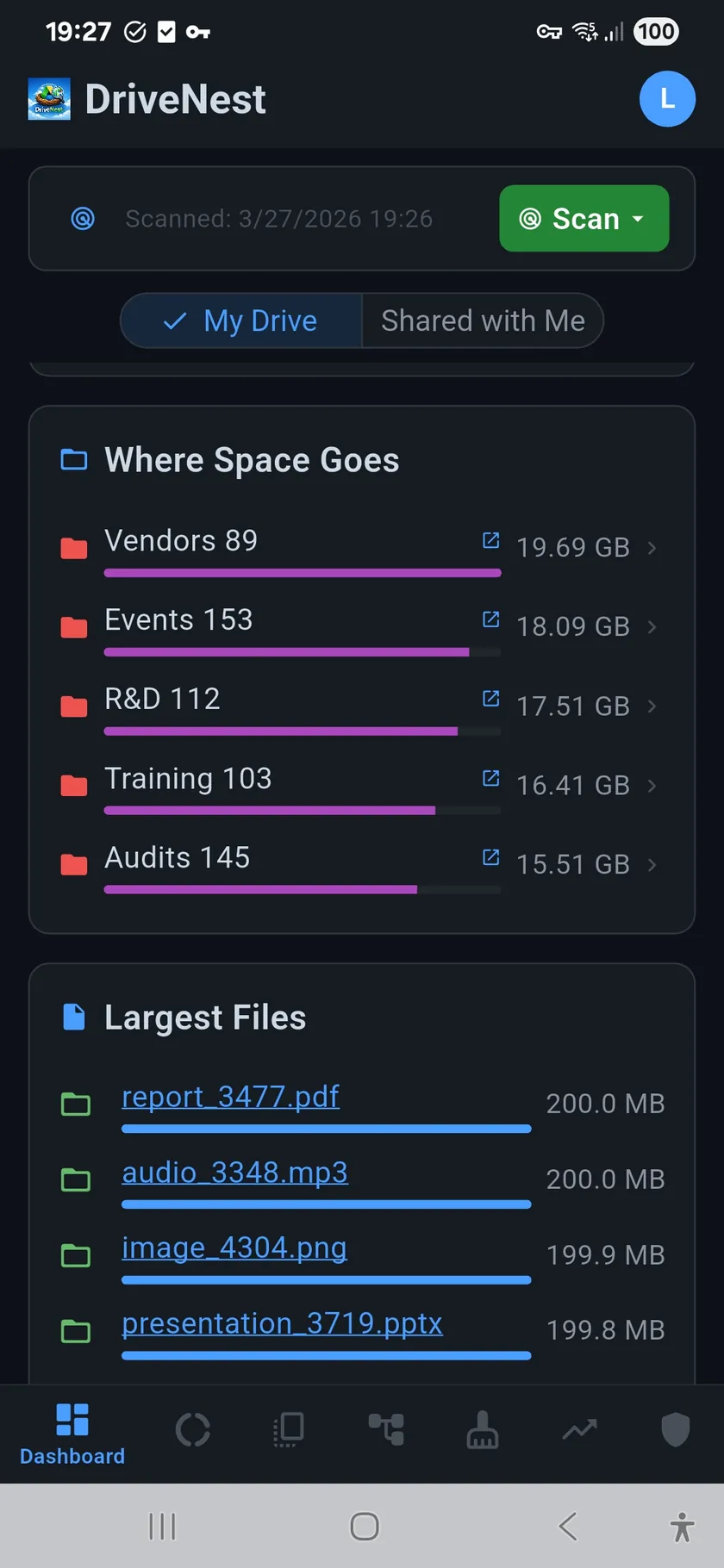
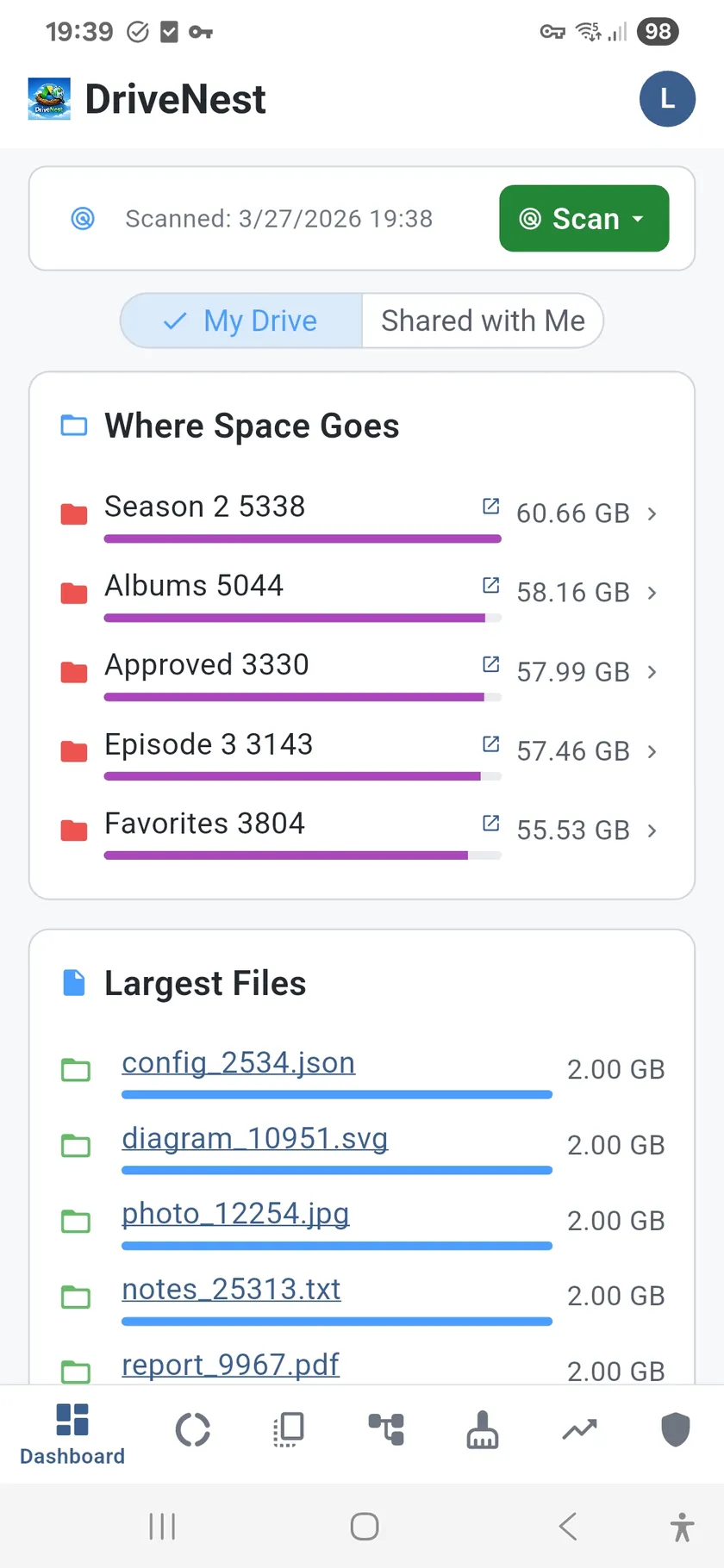
- Where Space Goes — largest folders ranked by size
- Largest Files — your biggest individual files, with direct links into the cloud they live in
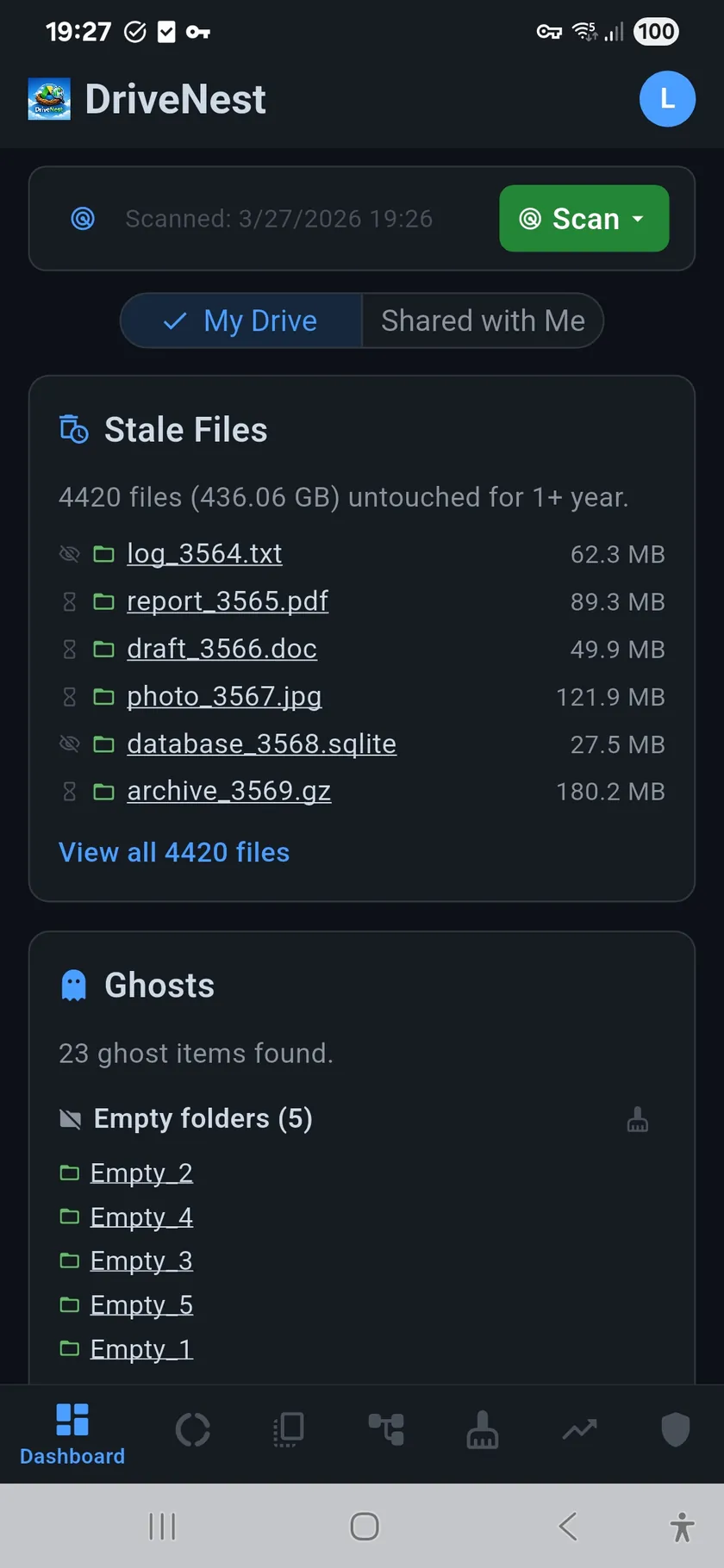
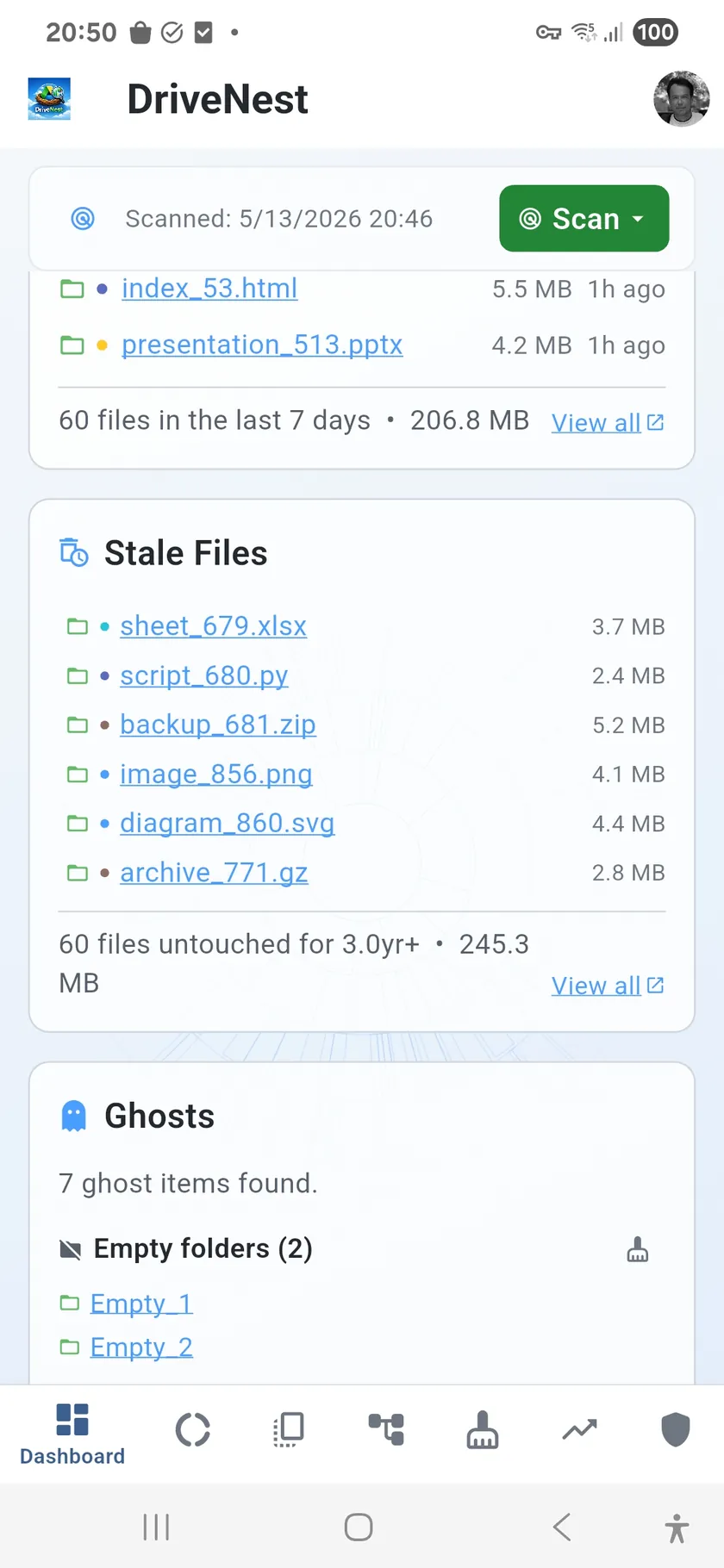
- Stale Files — files untouched for months, sorted by age and size
- Ghost Files — empty folders, zero-size files, hidden items
- Smart Insights — automatic anomaly detection and storage warnings
- Recent Changes — files modified or added recently
- File Types — storage distribution by category (documents, images, video, etc.)
- Revision / Version Overhead — top files consuming quota through superseded copies, with stored and keep-forever counts
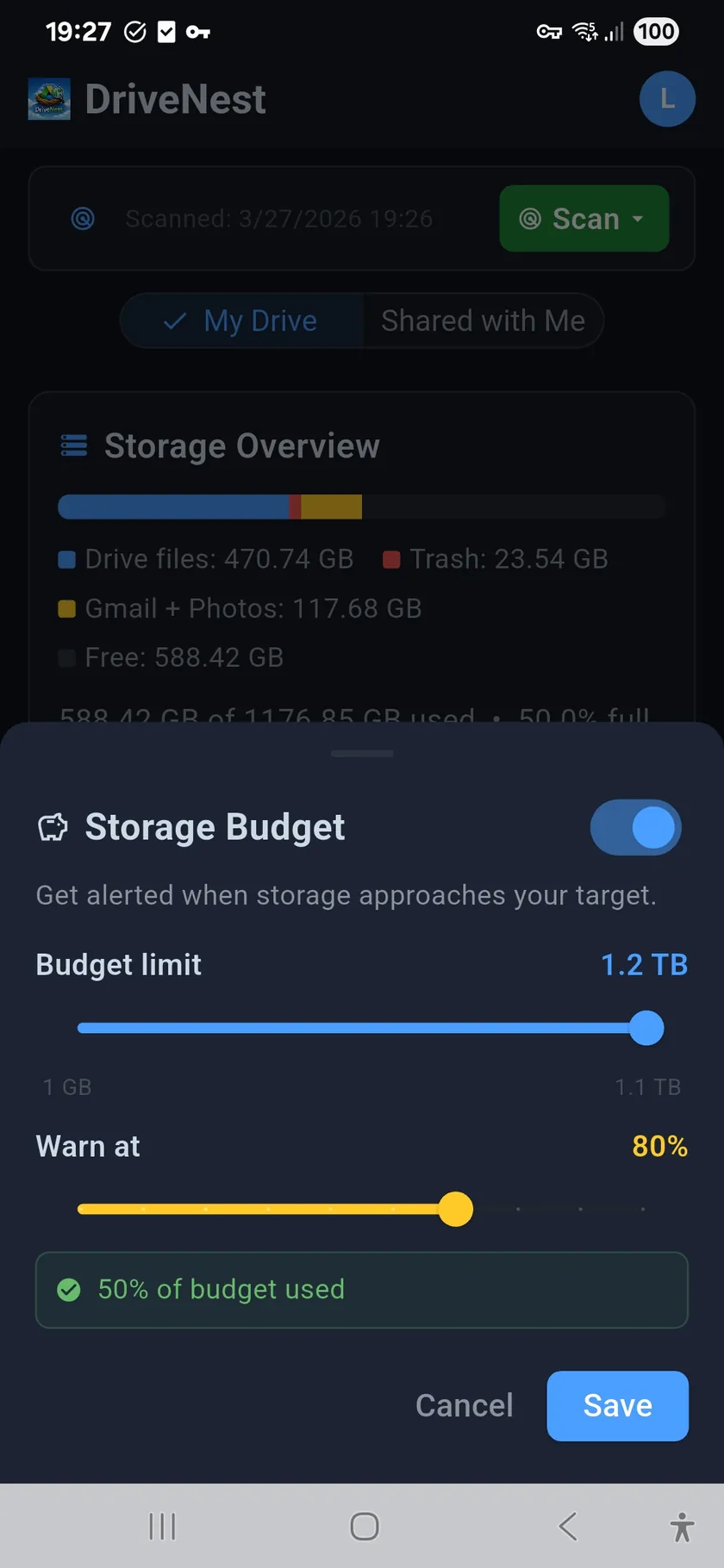
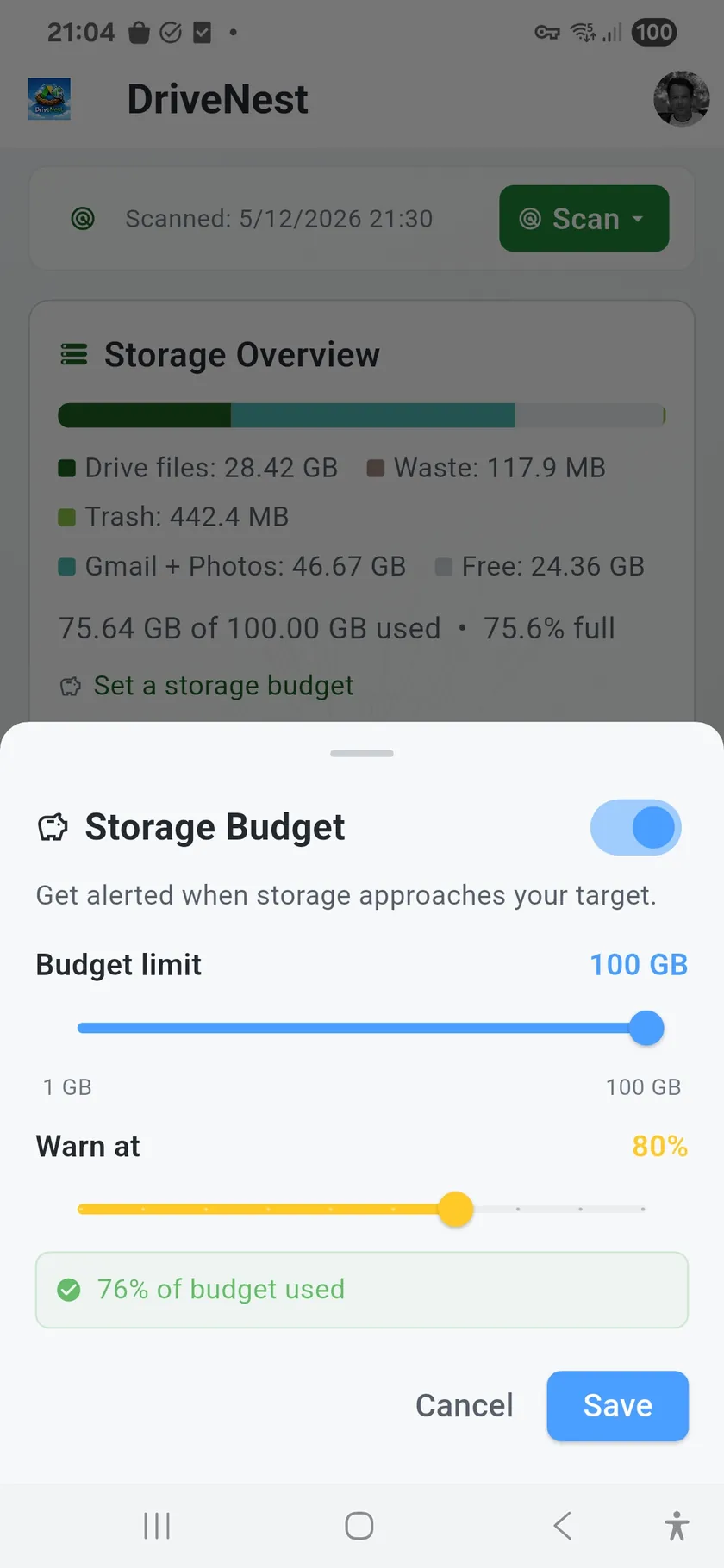
- Storage Budget — set a target and get alerts when you approach it
- PDF Report — export a full snapshot of your Dashboard (Ultimate)
Make it yours. Panels can be shown, hidden and reordered, and the layout is stored per cloud — so your OneDrive dashboard can look nothing like your Drive one. The same applies to navigation tabs.
Revision history overhead
The Revision Overhead panel reveals a category of wasted storage that Google Drive's own interface never shows: quota consumed by old saved versions of non-Workspace files (PDFs, images, Office documents). DriveNest fetches revision metadata for your top offenders and shows the stored version count, how many are pinned as keep-forever, and the exact overhead in bytes for each file. From the panel you can open the revision cleanup script dialog with one tap. See the Revision Overhead page for full details.
No more storage surprises
Set a storage budget and DriveNest will alert you when your usage approaches the limit. Combined with scheduled background scans (subscription), your Dashboard stays current automatically — so you always know exactly where you stand.